Having trouble getting Loop to install on your Apple Watch?
Many Loopers are struggling to install Loop on their Apple watch. If you have a free Apple Developer account, then only the Easy Method will work for you. If you have a paid Apple Developer account, then you can try any of these options to resolve this.
You will increase your chance for success if you make sure that your phone is not in low power mode and that your watch is charged. Mac-Xcode builders should make sure that their watch, computer and phone are all on the same WiFi network.
Browser Builders
In TestFlight, be sure that Show App on Apple Watch is enabled.

Easy Method
- Install new Loop app on phone
- In your iPhone’s Watch app
- Remove LOOP as a complication and replace it with NONE
- Go to INSTALLED ON APPLE WATCH section, tap on LOOP and deselect SHOW APP on Apple Watch
- If you have DELETING APPS set to DON’T ALLOW on your phone (you really should),
- The DELETING APP setting is on iPhone under Settings, Screen Time, Content & Privacy Restrictions, iTunes & App Store Purchases
- Change it to ALLOW
- Add LOOP back to your desired complication
- Protect your app by changing your iTunes & App Store Purchases to DON’T ALLOW
Browser Build
Your second option is to try a Browser Build. The issue with Loop not installing on WatchOS 10 and 11 devices only impacts Xcode builders.
Mac-Xcode Builders
LoopDocs has great instructions and graphics. Here’s a simplified version:
- Enable Developer mode on. your watch (if you can)
- Download fresh loopcode in terminaal and build to your phone
- Plug your watch into your Mac
- Change the scheme from Loopworkspace to WatchApp
- Change the watch to your actual watch. Xcode will look like the adjacent image.

- Wait patiently. It may take up to 1-2 hours for all of the symbols, etc to install
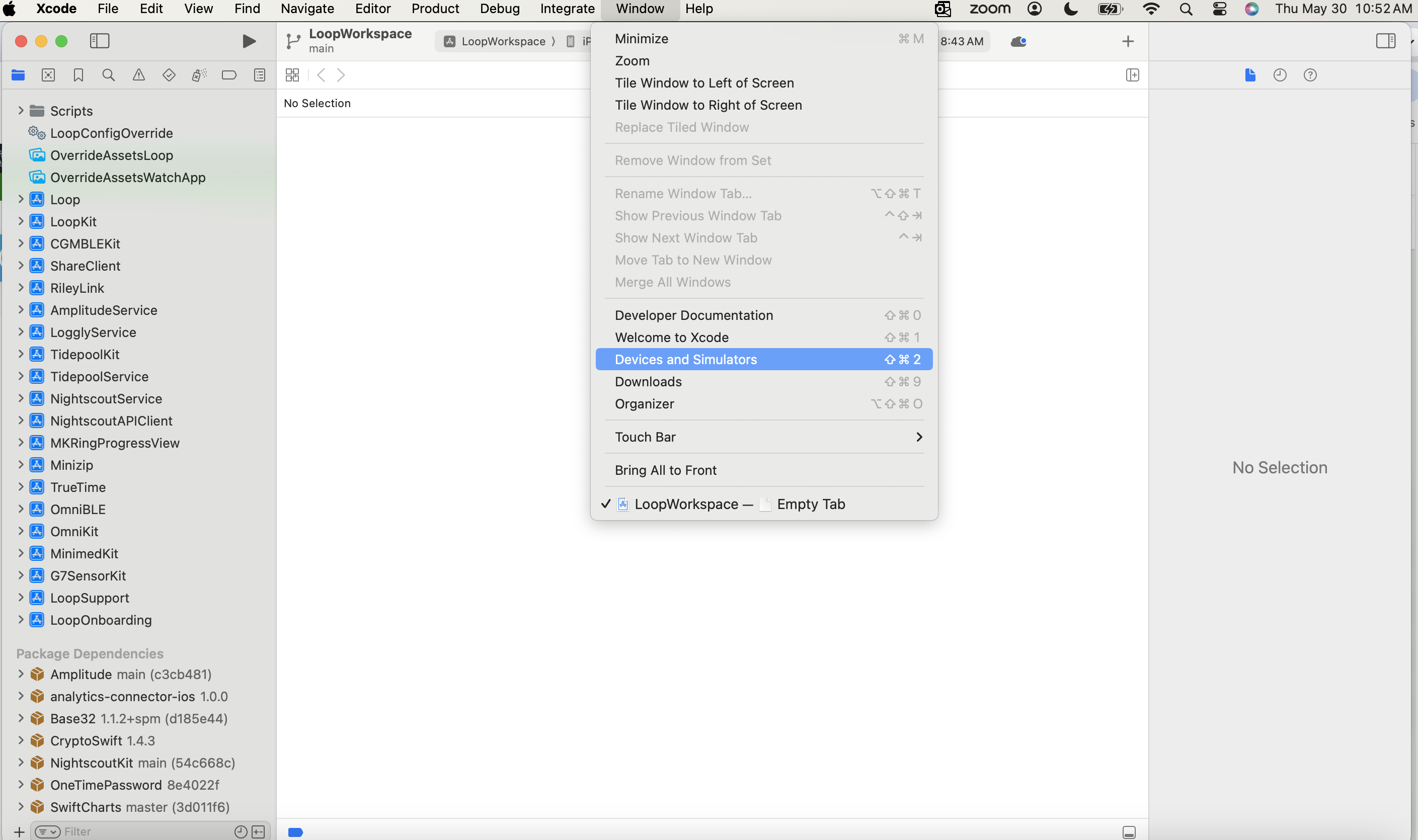
- You can follow along with the progress by clicking on Windows/Devices and Simulators
Manual UDID Method
The last option is the most time consuming. Most Loopers can manage to resolve this issue by following the detailed instructions below. Some Loopers also need to unpair and pair their watch, and reboot their phones and watch – repeatedly.
Step 1: In Xcode, click on Window/Devices and Simulators/Devices and look for your watch UDID. Copy it to your clipboard.
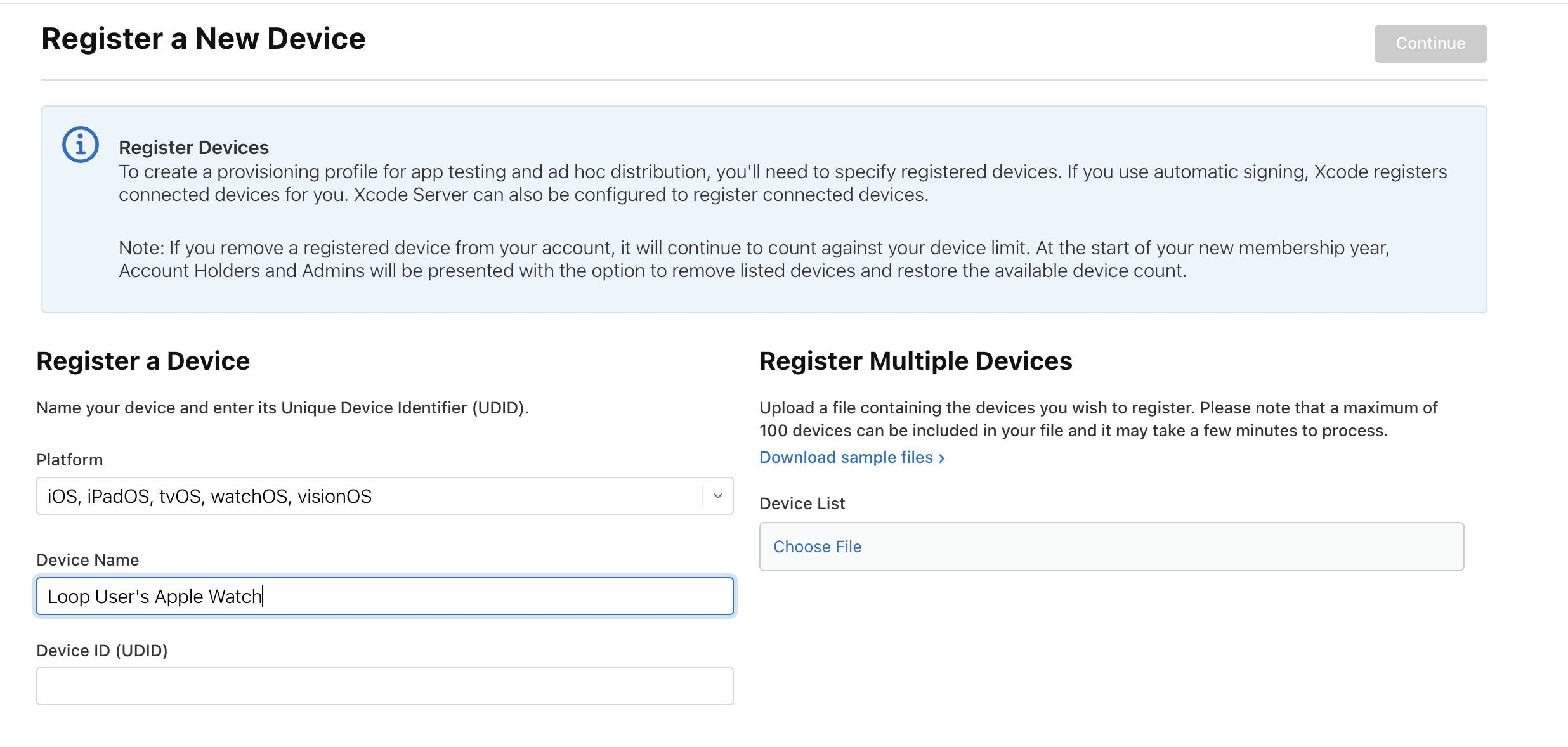
Step 2: Paste that UDID here: https://developer.apple.com/account/resources/devices/add
Step 3: Open Terminal and rerun the Build Select Script. https://loopkit.github.io/loopdocs/build/build-app/#build-select-script
Step 4: Select Option 3 Maintenance Utilities, then Option 4 to Clean Profiles
Step 5: Still in Terminal, select Option 1 to Build Loop. Follow the prompts in the script. You will be given the opportunity to customize your Loop app. Eventually Xcode will open. Rebuild Loop to your phone. Watch should be close-by and paired to the phone.

You can’t run Loop on an Apple Watch
For Loop, Apple Watch is only a secondary display device and your Apple Watch needs the Looping phone within Bluetooth range in order to use the Loop watch app’s functions.
Why can’t you Loop using just an Apple Watch and leave the Looping phone at home?
An Apple Watch is missing a few things to make functioning as a Looping device possible in the short term
1) Loop needs to be run on a device that has Apple health (and the watch does not have AH)
2)insufficient battery life. When you walk away from your phone, Loop reverts to scheduled basals.
All that the Dexcom gG7 direct to watch (DTW) feature can do is provide glucose level . That’s it.